
Want to start a blog in 2026? This complete step-by-step guide covers everything from choosing a niche and hosting to writing your first post and making money—no coding required.
Introduction
Thinking about starting a blog but not sure where to begin? You’re not alone. Thousands of people launch new blogs every day, and WordPress powers over 43% of all websites on the internet . That’s because WordPress makes it easy for anyone—even if you’ve never written a line of code—to create a beautiful, professional website .
Whether you want to share your passion, build a business, or generate extra income, this guide will walk you through every single step. No technical jargon, no confusing terminology—just plain English and actionable advice.
Here’s what we’ll cover:
- Choosing your blog niche and defining your audience
- Understanding WordPress.com vs. WordPress.org
- Picking a domain name and hosting provider
- Installing WordPress and configuring settings
- Designing your blog with themes
- Adding essential plugins
- Writing and publishing your first post
- Promoting your blog and making money
Let’s dive in and get your blog live!
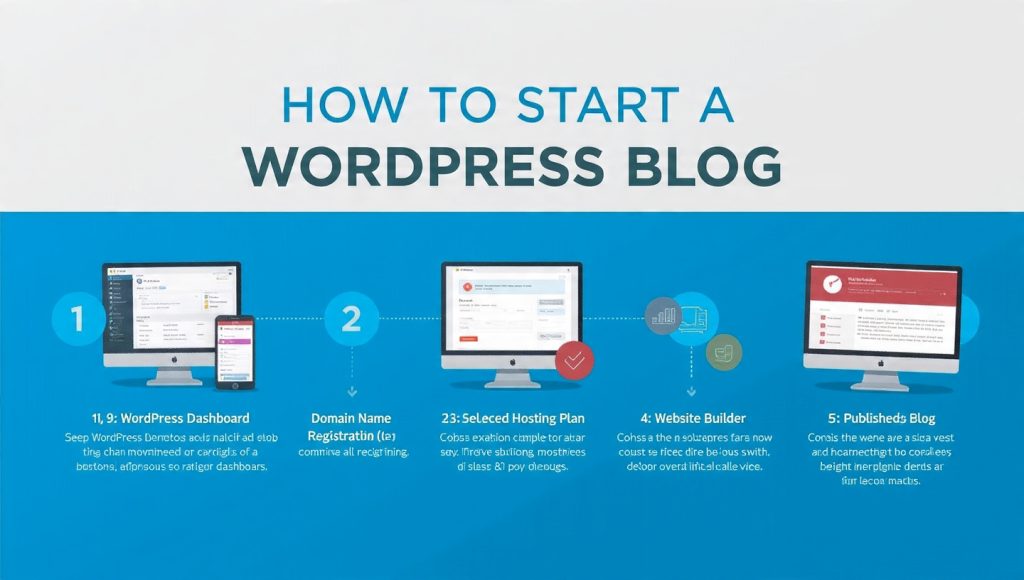
Step 1: Define Your Blog Niche and Audience
Before you buy anything or install any software, you need clarity. A focused niche helps you stand out in a crowded digital space and attracts a loyal readership .
Why Your Niche Matters
According to blogging experts, the most profitable blog niches share three characteristics :
- Sustained audience demand – People actively search for information in your niche year after year
- Multiple monetization paths – You can earn through affiliate marketing, digital products, ads, and more
- Audience willingness to spend – Your readers are ready to buy products or services
How to Choose Your Niche
Ask yourself these questions :
- What topics am I passionate about and knowledgeable in?
- Who would benefit most from my content?
- Are there existing blogs in this space? What can I offer differently?
Profitable Blog Niches for 2026
Research shows these niches consistently generate the highest income :
| Niche | Why It’s Profitable | Monetization Options |
|---|---|---|
| Personal Finance | High commercial intent; readers ready to open accounts, buy courses | Affiliate programs ($50–$200 per sign-up), display ads (high CPMs) |
| Health & Wellness | Massive consistent search volume | Supplements, equipment, courses, coaching |
| Technology & Software | High-ticket items, recurring commissions (20–50%) | Software reviews, comparisons, tutorials |
| Food & Recipe | Strong search volume, evergreen content | Display ads, affiliate kitchen equipment, digital products |
| Parenting & Family | Emotionally engaged audience, high trust | Sponsored content, affiliate links to products |
Pro Tip: Avoid overly broad niches like “lifestyle” unless you have a unique angle. Instead, target micro-niches such as “vegan meal prep for college students” or “solo travel in Southeast Asia on a budget” . These face less competition and rank faster in search engines.
Step 2: Understand WordPress.com vs. WordPress.org
This is the most important decision you’ll make. While they share the same name, these two platforms offer very different experiences .
| Feature | WordPress.org (Self-Hosted) | WordPress.com (Hosted) |
|---|---|---|
| Hosting | You need your own hosting provider | Hosting included |
| Domain | You purchase your own domain | Free subdomain (custom domain requires paid plan) |
| Customization | Full access to all themes and plugins | Limited (more with paid plans) |
| Monetization | Complete freedom—ads, affiliate links, etc. | Restricted on free/cheap plans |
| Cost | Hosting + domain (~$50–$100/year) | Free basic, paid upgrades |
| Best For | Serious bloggers, businesses, anyone wanting full control | Hobbyists, personal sites, beginners testing the waters |
The Verdict: For anyone serious about blogging, choose WordPress.org . It gives you complete ownership, flexibility, and the ability to monetize however you want. The rest of this guide assumes you’re using self-hosted WordPress.org.
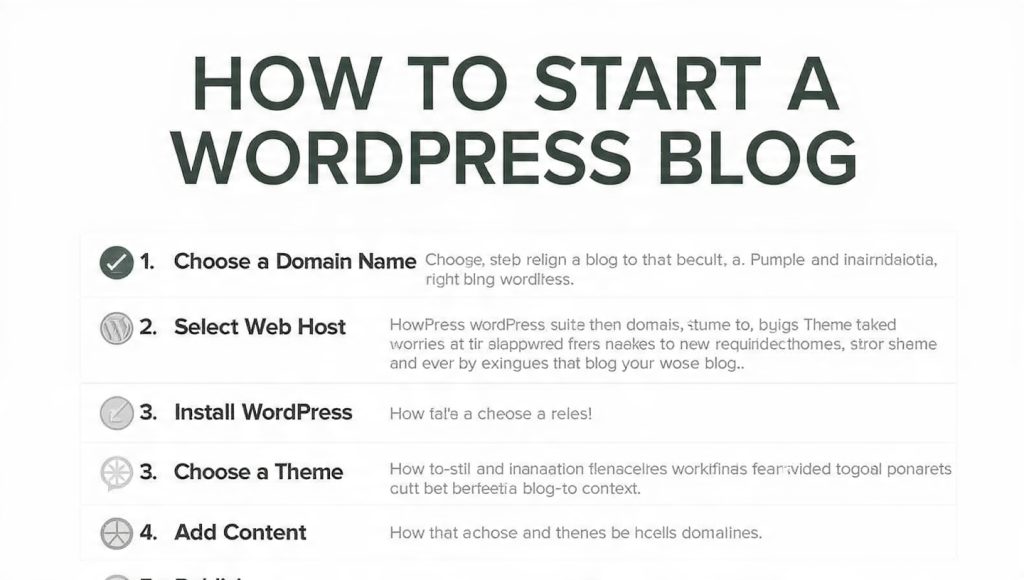
Step 3: Choose a Domain Name and Hosting Provider
What You Need
- Domain name – Your blog’s address (e.g., yourblog.com)
- Hosting – Where your blog’s files live online
How to Pick a Domain Name
- Short and memorable – Easy to type and remember
- Relevant to your niche – Gives visitors an idea what you’re about
- Easy to spell – Avoid unusual spellings or hyphens
Use tools like Namecheap or check availability directly with hosting providers. Most hosts offer a free domain for the first year when you purchase hosting .
Best WordPress Hosting Providers for 2026
Based on expert testing and reviews, here are the top options :
| Host | Best For | Starting Price | Key Features |
|---|---|---|---|
| Hostinger | Overall value, beginners | $2.99/mo | Free domain, one-click WordPress, AI tools, 24/7 support |
| Bluehost | WordPress.org official recommendation | $3.79/mo | Free domain, AI builder, phone support, 36-month intro rate |
| SiteGround | Performance + support | $2.99/mo | Google Cloud, daily backups, 4.9/5 support rating |
| WP Engine | High-traffic, enterprise | $20/mo | EverCache, developer tools, 60-day guarantee |
| Elementor Hosting | Elementor users | $9.99/mo | Google Cloud C2, Cloudflare Enterprise, builder bundled |
For most beginners, Hostinger or Bluehost offer the best combination of affordability, ease of use, and features . Both include one-click WordPress installation and free domains.
Step-by-Step: Signing Up for Hosting
- Visit your chosen host’s website
- Select a hosting plan (usually 36–48 months for best rates)
- Choose or register your domain name
- Complete checkout (look for money-back guarantees—most offer 30 days)
- Create a strong password and enable two-factor authentication if available
Step 4: Install WordPress
Most modern hosting providers offer one-click WordPress installation .
How to Install WordPress
- Log into your hosting control panel (cPanel, hPanel, or custom dashboard)
- Find the WordPress installer – Look for icons like “WordPress,” “Softaculous,” or “One-Click Install”
- Click through the installation wizard:
- Select your domain
- Create a site title and admin username/password
- Enter your email address
- Complete installation and note your WordPress login URL:
yourdomain.com/wp-admin
That’s it! WordPress is now installed and ready to configure.
Step 5: Configure Core WordPress Settings
After logging into your WordPress dashboard, configure these essential settings :
General Settings
- Go to Settings → General
- Set your Site Title and Tagline (can be changed anytime)
- Save changes
Permalinks (Critical for SEO)
- Go to Settings → Permalinks
- Select “Post name” – This creates SEO-friendly URLs like
yourblog.com/your-post-title - Save changes
Reading Settings
- Go to Settings → Reading
- Choose what displays on your homepage:
Discussion Settings
- Enable comments if you want reader engagement
- Moderate first-time commenters to reduce spam
Install SSL Certificate
Most modern hosts automatically install SSL certificates. To check:
- Look for a padlock icon next to your URL
- If missing, contact your host or install via your control panel
Step 6: Design Your Blog with a Professional Theme
Themes control your blog’s appearance. WordPress offers thousands of free and premium options .
Choosing a Theme
For beginners, choose a lightweight, responsive theme that’s fast-loading and works on all devices .
Recommended free themes for 2026:
- Astra – Fast, highly customizable
- GeneratePress – Lightweight, performance-focused
- Kadence – Modern design, flexible layouts
- Twenty Twenty-Six – WordPress default, simple and clean
How to Install a Theme
- Go to Appearance → Themes → Add New
- Search for your chosen theme
- Click Install then Activate
Customize Your Theme
- Go to Appearance → Customize
- Configure these elements :
- Site Identity – Upload logo, set site icon
- Colors – Match your brand
- Typography – Choose readable fonts
- Header & Footer – Layout options
- Homepage Settings – Configure static page if desired
Pro Tip: Don’t spend weeks perfecting your design. Choose something clean and get started—you can always tweak later!
Step 7: Install Essential Plugins
Plugins add functionality to your WordPress site without coding . With over 60,000 free plugins available, it’s easy to extend your blog’s capabilities .
Must-Have Plugins for Beginners
How to Install Plugins
- Go to Plugins → Add New
- Search for the plugin name
- Click Install Now then Activate
- Follow the setup wizard (most plugins have one)
Important: Only install plugins you actually need. Too many plugins can slow down your site . Keep them updated regularly—outdated plugins are a leading cause of security breaches .
Step 8: Create Foundational Pages
Before launching, create these essential pages :
Pages Every Blog Needs
- About Page – Share your story, mission, and why readers should trust you. Be authentic and conversational.
- Contact Page – Include a form (using WPForms) and your professional email address.
- Privacy Policy – Legally required, especially if using ads, affiliate links, or collecting emails. Use a privacy policy generator if needed.
- Blog Page – If using a static homepage, create an empty page titled “Blog” to display your posts .
How to Create a Page
- Go to Pages → Add New
- Add a title (e.g., “About”)
- Add your content
- Click Publish
Setting Up a Static Homepage (Recommended)
Most professional blogs use a static homepage rather than listing recent posts. Here’s how :
- Create two pages: “Home” and “Blog” (both can be empty for now)
- Go to Settings → Reading
- Select “A static page”
- Set “Home” as your homepage and “Blog” as your posts page
- Save changes
Now your blog posts will appear at yourblog.com/blog, and you can customize your homepage later.
Step 9: Write and Publish Your First Blog Post
This is what you’ve been waiting for! Let’s create your first post .
How to Create a Blog Post
- Go to Posts → Add New
- Add a title – Make it compelling and include your target keyword
- Add content using the WordPress block editor (Gutenberg):
- Click the blue + icon to add blocks (paragraphs, images, headings, lists, etc.)
- Type or paste your content
- Add images by clicking + → Image → Upload or select from media library
Organize Your Post with Categories and Tags
WordPress gives you two ways to organize content :
- Categories – Broad topic groups (hierarchical). You must assign at least one category per post.
- Tags – Very specific topics (non-hierarchical). Optional.
Example:
- Category: “Travel”
- Tags: “Paris,” “budget travel,” “solo female travel”
To assign them:
- Use the Categories and Tags panels in the right sidebar
- Create new categories as needed
Set a Featured Image
- In the right sidebar, find Featured Image
- Click Set featured image
- Upload or select an image
- Click Set featured image
Most themes display this image on your blog homepage and social media shares . Create images using Canva if needed.
Optimize for SEO (Using Yoast or Rank Math)
- Scroll down to the SEO plugin section (below your post)
- Add an SEO title (includes your keyword, compelling to click)
- Add a meta description (brief summary that appears in search results)
- Check the green/yellow/red indicators for optimization suggestions
Publish Your Post
- When ready, click the blue Publish button in the top-right corner
- Review options:
- Immediately – Goes live now
- Schedule – Set future date/time
- Click Publish again to confirm
Congratulations! You’ve just published your first blog post! 🎉
Step 10: Promote Your Blog and Grow Your Audience
Publishing great content is only half the battle. You need readers! Here are proven strategies :
1. Follow SEO Best Practices
- Use keywords naturally in titles, headings, and content
- Write comprehensive articles (1,500+ words) that thoroughly answer questions
- Optimize image alt text
- Internal link to your other posts
- Use Yoast SEO or Rank Math as your guide
2. Create an Email Newsletter
Email is the most direct connection with your audience :
- Use services like Mailchimp or Kit (free plans available)
- Create a lead magnet (free checklist, ebook, or guide) to encourage signups
- Add signup forms using Gravity Forms or WPForms
- Send regular updates with your new content
3. Share on Social Media
- Create eye-catching pins for Pinterest using Canva (great for long-term traffic)
- Share posts on Twitter/X, Facebook, LinkedIn, and Instagram
- Join niche Facebook groups and contribute value (don’t just drop links)
- Engage with other bloggers by leaving thoughtful comments
4. Repurpose Your Content
Turn one blog post into multiple formats :
- Twitter/X thread summarizing key points
- Instagram carousel with tips
- YouTube video expanding on the topic
- Podcast episode discussing your post
5. Monitor Performance with Google Analytics
- Connect MonsterInsights or manually add Google Analytics tracking code
- Monitor :
- Top-performing content
- Traffic sources (organic, social, direct)
- Bounce rate and session duration
Double down on topics that resonate. Update underperforming posts with fresh data and better keywords .
Bonus: How to Make Money with Your WordPress Blog
Once you have traffic, you can monetize. Here are the most proven methods for 2026 :
| Method | Difficulty | Income Potential | Best For |
|---|---|---|---|
| Affiliate Marketing | Beginner | Medium to High | Bloggers, reviewers, niche sites |
| Digital Products | Intermediate | High | Experts, designers, educators |
| Display Ads | Beginner | Low to Medium | High-traffic blogs |
| Sponsored Content | Intermediate | Medium to High | Established bloggers |
| Memberships | Advanced | High | Content creators, coaches |
| Online Courses | Advanced | Very High | Industry experts |
| eCommerce/Dropshipping | Intermediate | Medium to High | Product sellers |
1. Affiliate Marketing
Promote products you love and earn commissions on sales. Join programs like :
- Amazon Associates
- ShareASale
- Commission Junction
- Individual brand programs (Shopify, Bluehost, etc.)
Tips: Choose products relevant to your audience, disclose affiliate relationships, and create honest, helpful reviews .
2. Display Ads
Place ads on your site and earn from impressions or clicks :
- Google AdSense – Best for beginners
- Mediavine or AdThrive – Higher paying, require traffic thresholds
3. Digital Products
- eBooks
- Templates and themes
- Printables and planners
- Online courses
4. Sponsored Content
Partner with brands to create content promoting their products. Requires established audience and trust .
Frequently Asked Questions
How much does it cost to start a WordPress blog?
Typically $50–$100 per year. This includes hosting ($3–$10/month) and a domain name (~$12/year). Premium themes or plugins may add $50–$100 one-time .
Can I switch themes after launching?
Yes. Most themes preserve your content. However, custom layouts may need reconfiguration. Always backup your site before switching .
How often should I publish new posts?
Consistency matters more than frequency. One well-researched post per week is better than three rushed ones. Start with a realistic schedule you can maintain .
Do I need to know coding?
No. WordPress requires zero coding knowledge. Themes and plugins handle everything visually .
Is WordPress good for SEO?
Yes. WordPress has built-in SEO features, and plugins like Yoast SEO make optimization simple. Combined with quality content, WordPress sites rank well .
Can I start a blog and make money immediately?
Monetization takes time. Focus first on creating valuable content and building an audience. Most bloggers see their first income within 3–6 months .
Your 10-Step Launch Checklist
Use this checklist to track your progress:
- Step 1: Choose your niche and define your audience
- Step 2: Decide on WordPress.org (self-hosted)
- Step 3: Register domain name and sign up for hosting
- Step 4: Install WordPress (one-click installer)
- Step 5: Configure core settings (permalink structure = post name)
- Step 6: Install and customize a theme
- Step 7: Install essential plugins (SEO, security, backups, caching)
- Step 8: Create foundational pages (About, Contact, Privacy, Blog)
- Step 9: Write and publish your first blog post
- Step 10: Promote your blog and start building an audience
Conclusion: Your Blogging Journey Starts Now
Starting a WordPress blog in 2026 is easier than ever. With the right niche, reliable hosting, and consistent effort, you can build a platform that reaches thousands of readers and generates meaningful income.
Remember these key principles:
- Start before you’re ready – Your first post won’t be perfect, and that’s okay
- Focus on serving your audience – Solve their problems, answer their questions
- Be consistent – Show up regularly, even when growth feels slow
- Keep learning – SEO, content marketing, and monetization strategies evolve
The internet rewards those who show up with value, day after day . Your future readers are searching for someone like you—don’t keep them waiting.
Ready to begin? Register your domain today, install WordPress, and write your first post. Your blogging journey starts now! 🚀
 Previous Post
 Next Post